
Your business has been storing files on local servers for years. Moving those files to the cloud sounds great for scalability, durability, and potentially lower storage costs. But does everyone really need to change how they save and access files just to make that happen?
Not necessarily.
That’s where AWS Storage Gateway comes in. It bridges traditional file storage with cloud storage, allowing applications and users to work with familiar file-sharing protocols while AWS handles the cloud integration.
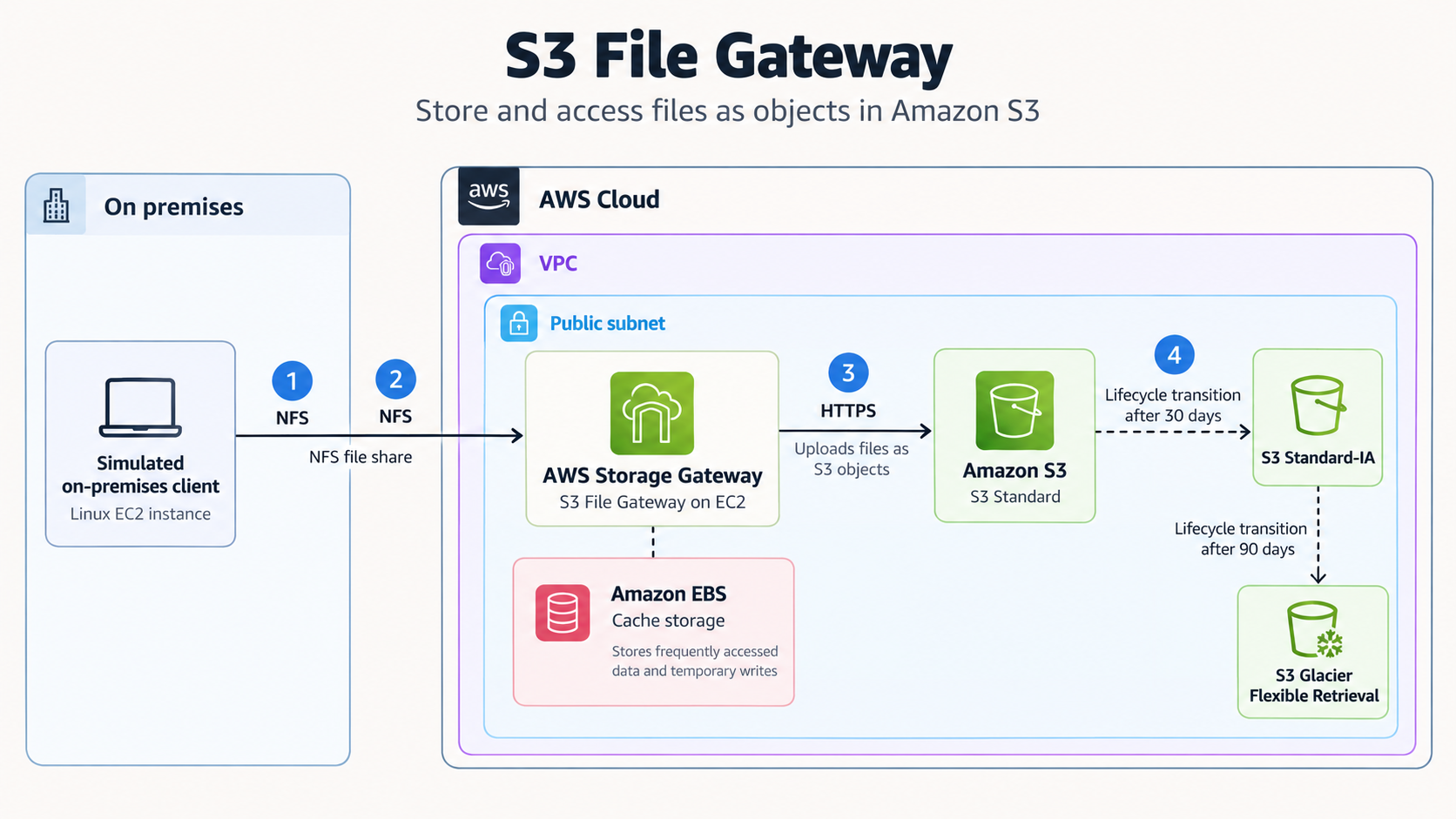
1. Understanding the Architecture
AWS Storage Gateway is a hybrid cloud storage service that connects on-premises environments to AWS storage services.
For this project, I used an Amazon S3 File Gateway, which presents objects stored in an S3 bucket through familiar file-sharing protocols such as NFS (Network File System) and SMB (Server Message Block).
In simpler terms: My Linux client speaks files. Amazon S3 speaks objects. Storage Gateway plays translator.
I used the following components:
- Amazon S3: The cloud destination where my files would be stored as objects.
- S3 File Gateway: The bridge between NFS file operations and Amazon S3.
- Amazon EC2: One instance hosted my Storage Gateway appliance, while another simulated an on-premises Linux client.
- Amazon EBS: Provided local cache storage for the gateway.
- NFS: Allowed the client to access a shared directory over the network.
- IAM: Controlled what the gateway could do with my S3 bucket.
- S3 Lifecycle policies: Automated transitions to lower-cost storage classes as objects aged.
The goal was to write files into a directory on my Linux client and watch them appear as objects in my S3 bucket.
2. Setting Up the S3 Bucket and Gateway Instance
First things first, I needed somewhere for my files to live. I created an Amazon S3 bucket to act as the cloud storage destination. But having a bucket alone doesn’t solve my problem.
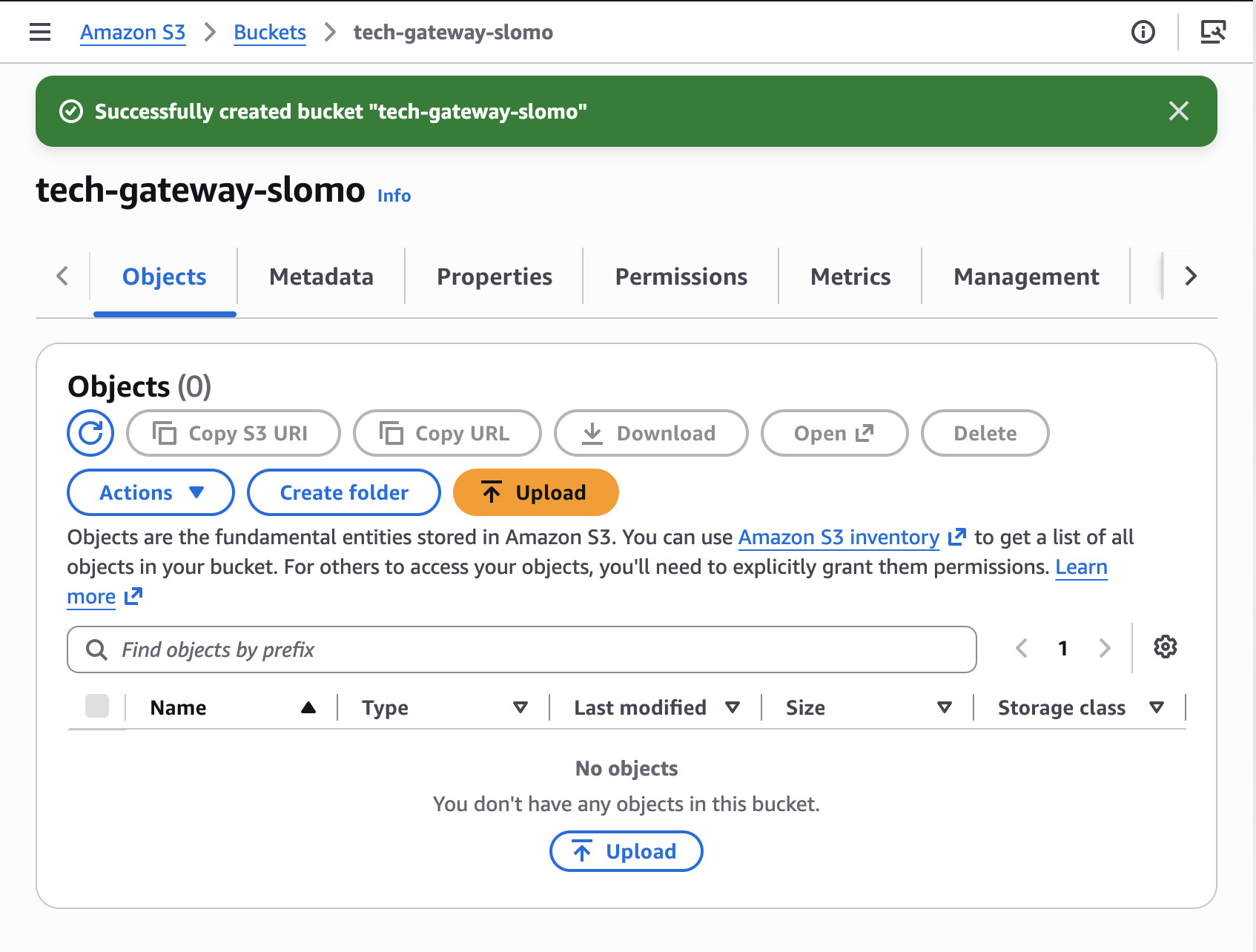
S3 is an object storage service. It doesn’t expose a native NFS file system that I can simply mount on a Linux machine.
I needed a translator, the AWS Storage Gateway.
Deploying the Storage Gateway appliance
On the Storage Gateway creation page, I chose the default settings for my EC2 instance.
It launched an m5.xlarge EC2 instance using the AWS Storage Gateway AMI and attached an additional 150 GiB EBS volume for cache storage.
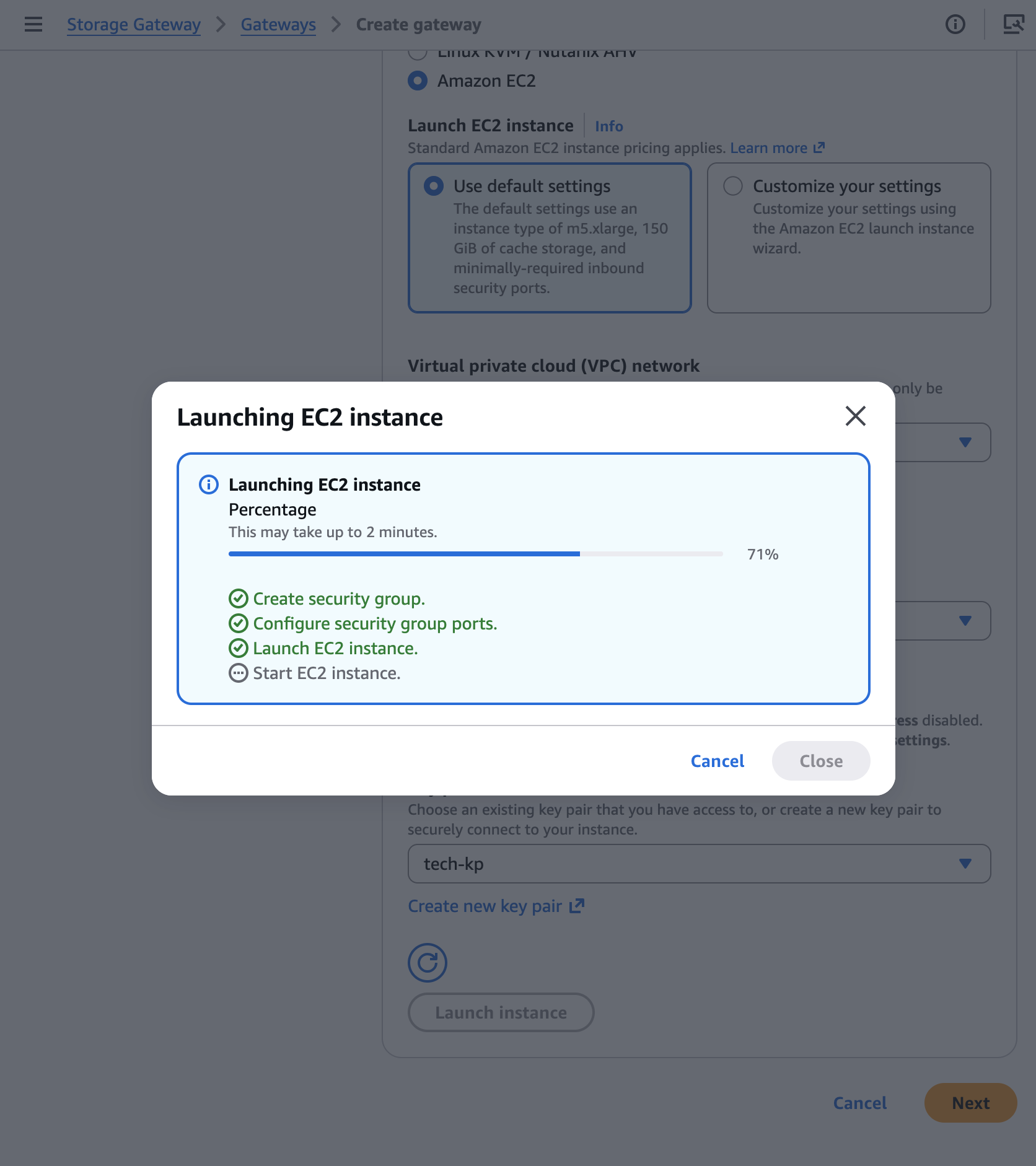
This EC2 instance runs the gateway software responsible for receiving file operations, managing the local cache, and communicating with Amazon S3.
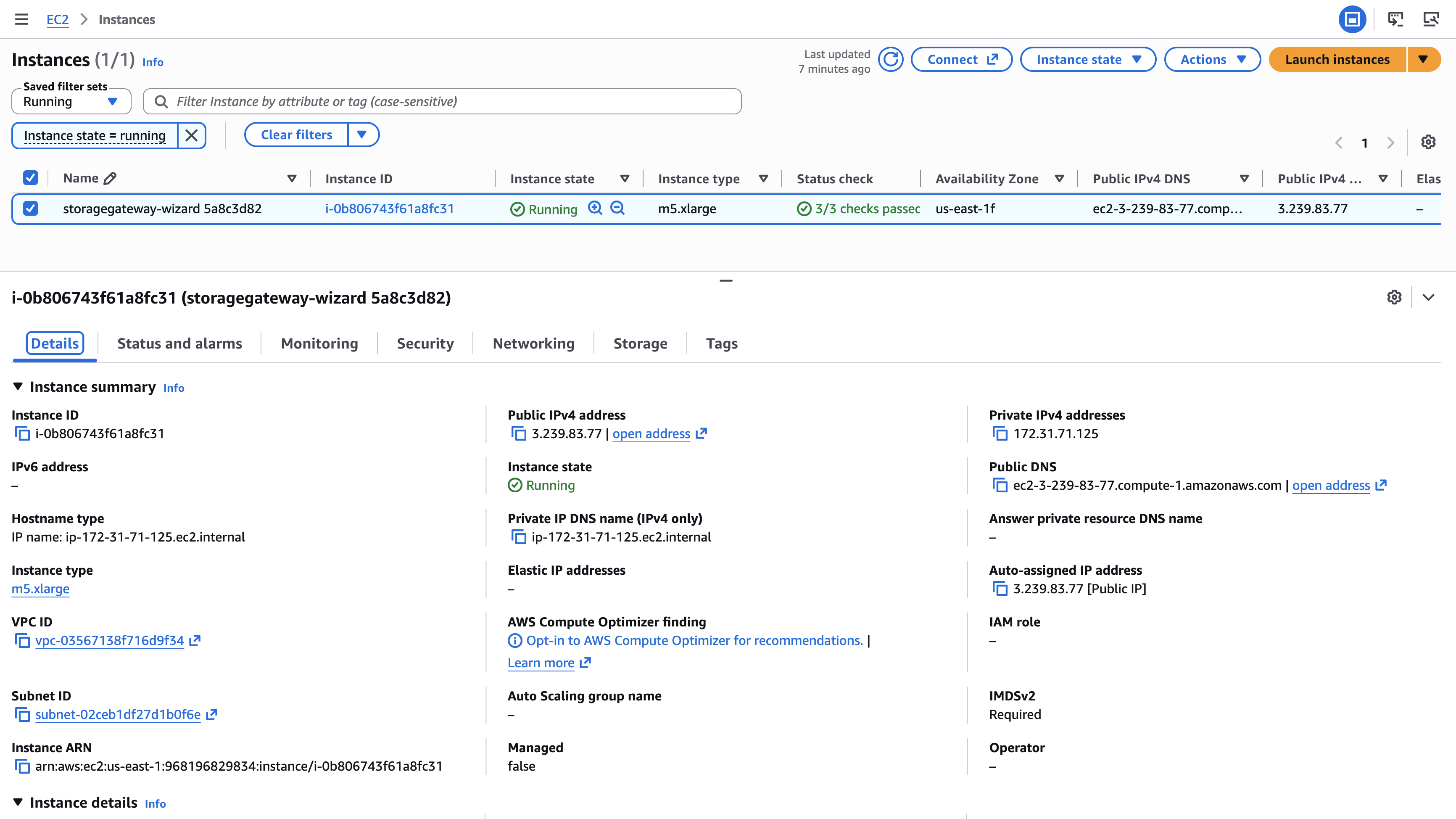
Unlike a typical EC2 instance where I might install Nginx or deploy an application, this one runs a purpose-built storage appliance.
At this point, I had the two main ingredients:
- An S3 bucket ready to receive files.
- A gateway appliance ready to connect my file system to that bucket.
Except they weren’t talking to each other yet. AWS doesn’t just let two services become besties without a proper introduction.
3. Activating the File Gateway and Understanding Caching
Launching the gateway instance doesn’t automatically register it with AWS Storage Gateway. I still needed to activate it.
Why activation matters
Activation establishes the connection between my running gateway appliance and the AWS Storage Gateway service in my account.
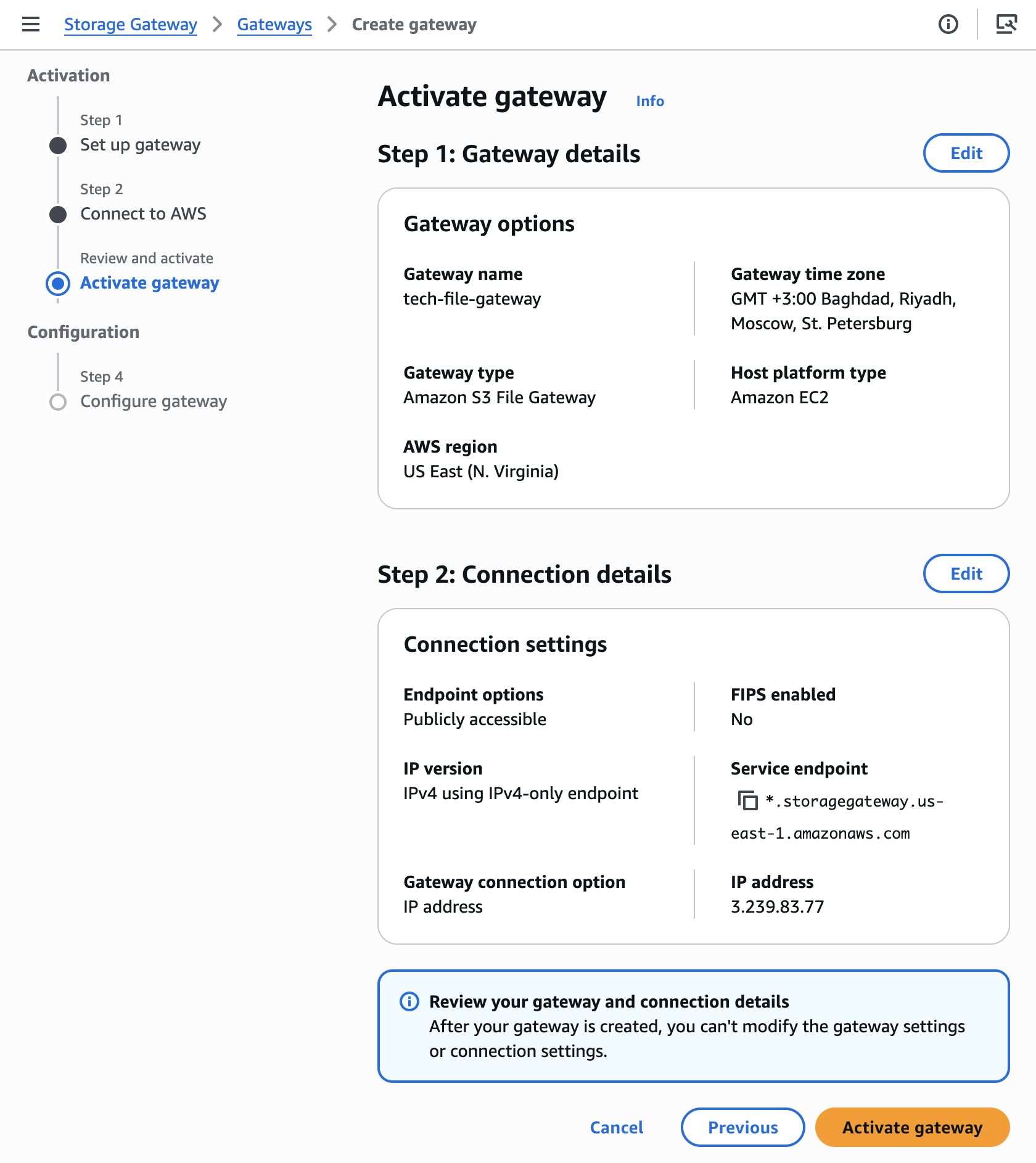
Once the gateway was activated, I configured the additional EBS volume as its local cache. Now, the gateway could manage locally accessed data while coordinating uploads to S3.
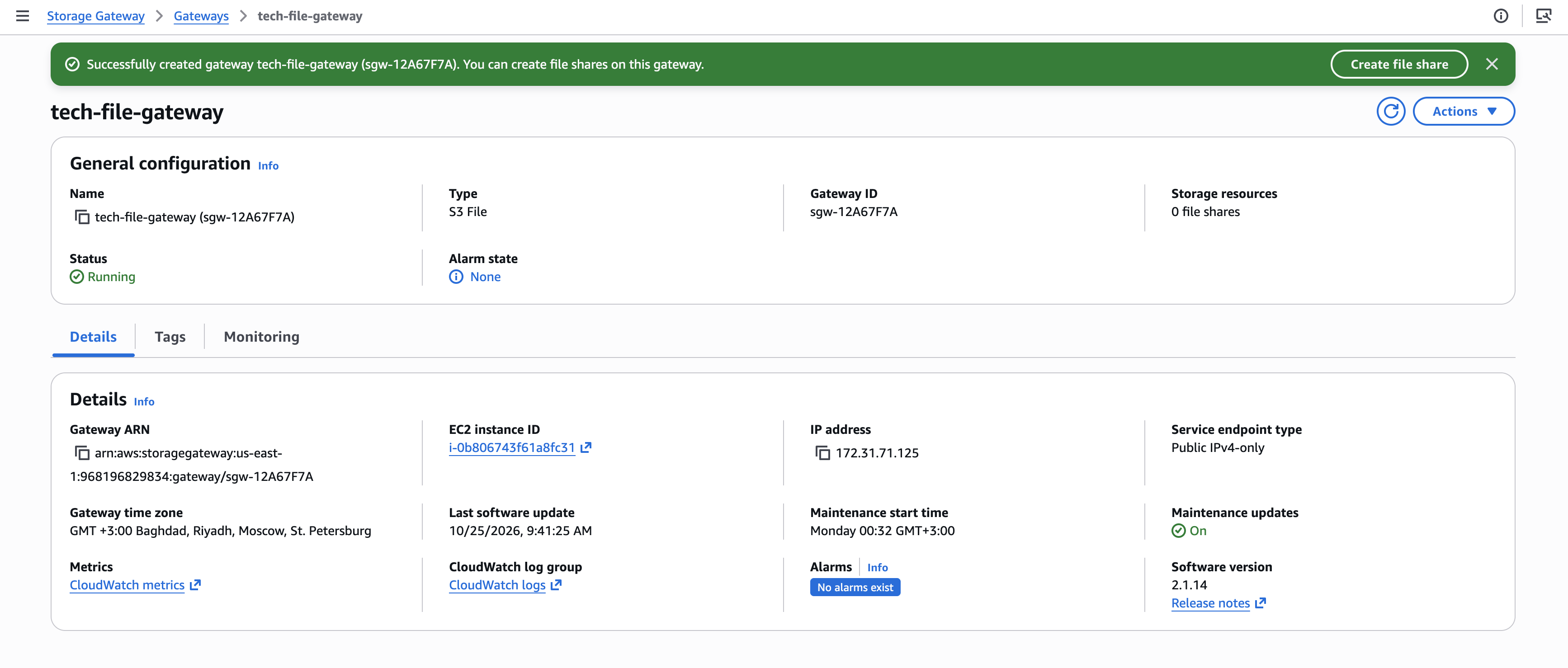
So, what’s the point of the cache?
Think of the cache as the gateway’s short-term memory.
When a client writes a file to the mounted share, the gateway first stores the data in its local cache. It then uploads the data to Amazon S3 asynchronously.
When the client reads a file, the gateway checks whether the required data is already cached. If it is, the gateway can serve it locally without fetching the data from S3 again. If it isn’t, the gateway retrieves the data from S3.
This is useful because fetching data over a network takes time, especially when the gateway is deployed in a physical on-premises environment connected to AWS.
💡 One important distinction: a successful local write doesn’t necessarily mean the file has already finished uploading to S3. The gateway handles that upload in the background.
So the cache isn’t just there to make reads faster. It also temporarily holds data waiting to be uploaded.
4. Creating an NFS File Share
My gateway was running, activated, and had its cache configured. But my simulated on-premises client still had nothing to connect to.
This is where the NFS file share comes in.
What’s an NFS file share?
NFS stands for Network File System.
It’s a protocol that lets one computer access files exposed by another computer over a network.
For example, instead of storing everything directly on your Linux machine, you can mount a shared directory hosted by another server.
Once mounted, a remote directory appears as part of the client’s local file system. You can interact with it using familiar Linux commands like ls, cp, and mkdir.
The cherry on top is that, my files wouldn’t actually be stored permanently on the client’s local disk. They would be managed by Storage Gateway and uploaded to S3.
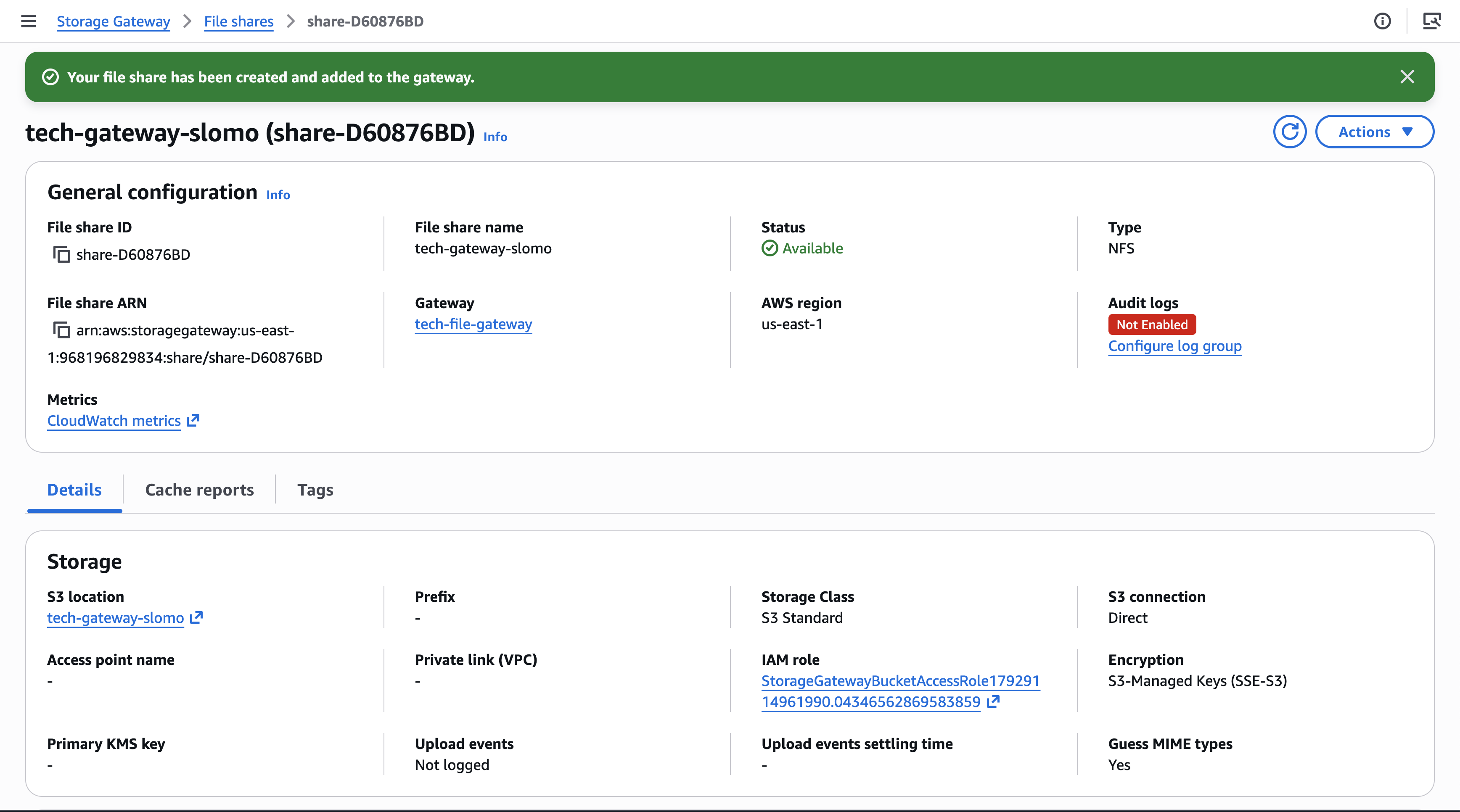
How does the gateway access S3?
This is where IAM comes into play.
During file share creation, I allowed AWS to create the IAM role required by the gateway. The role grants the gateway permission to perform the necessary operations on my S3 bucket.
There’s an important distinction here:
- NFS handles communication between the client and the gateway.
- IAM authorizes the gateway to interact with Amazon S3.
My client doesn’t need AWS credentials to write files through the NFS share.
Pretty neat, right?
5. Mounting the File Share on My Simulated On-Premises Client
Now came the part I was most excited about: actually seeing the NFS file share in action.
I launched a second EC2 instance to simulate an on-premises Linux client.
In a real hybrid cloud setup, this could be a Linux server sitting in a company’s physical data centre, connected to the gateway over its network.
In my case, both instances were hosted in AWS.
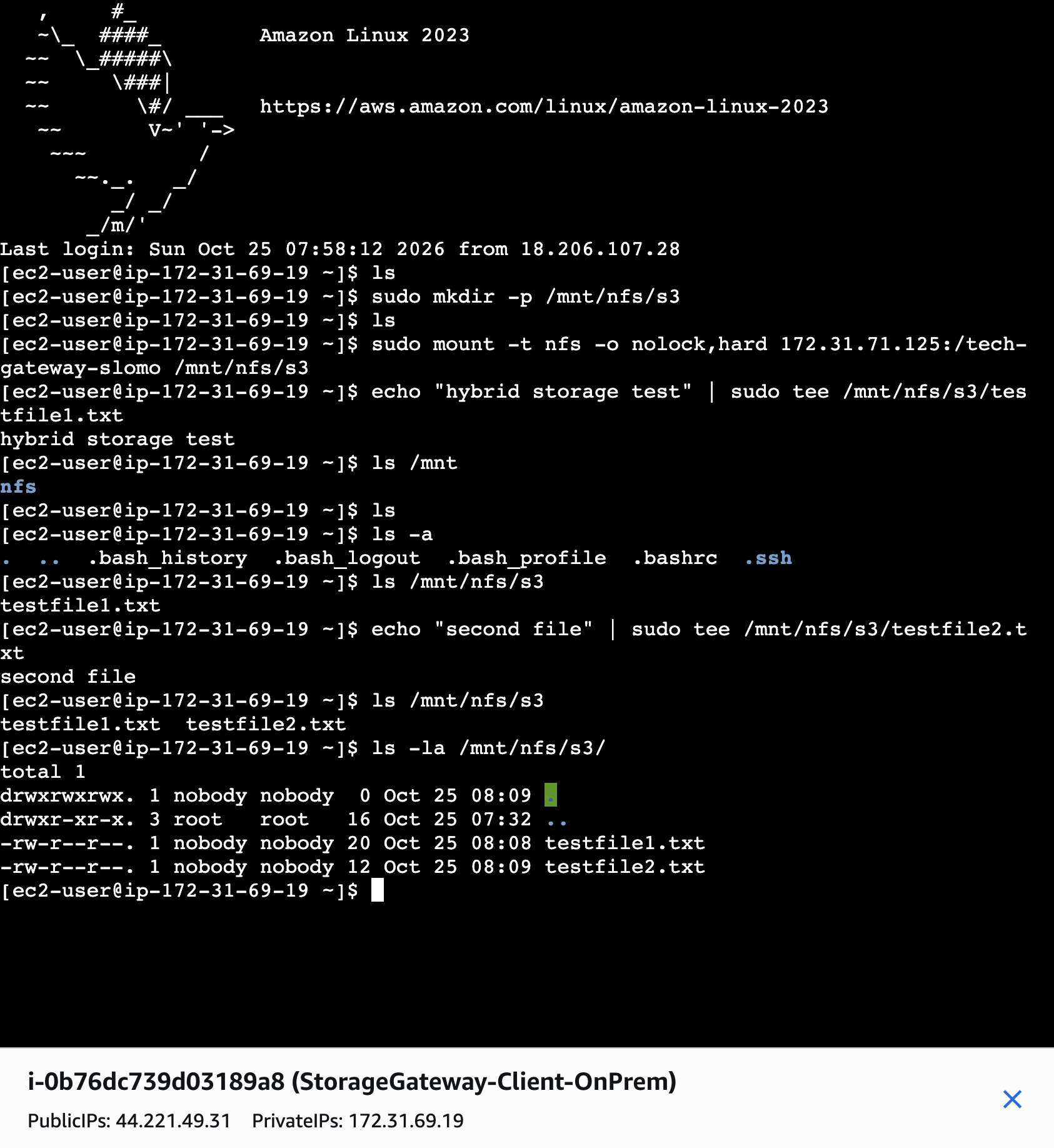
Mounting the NFS share
I created a local mount point and connected it to the gateway’s NFS file share.
The mount command followed this structure:
sudo mount -t nfs -o nolock,hard \
  <gateway-private-ip>:/<bucket-name> \
  /mnt/nfs/s3
Once mounted, /mnt/nfs/s3 behaved like a regular directory on my Linux machine.
But behind the scenes, file operations were being sent over NFS to the Storage Gateway.
What about security groups?
If you’ve followed my previous AWS networking experiments, you already know security groups have a special talent for making me question my life choices.
For this project, though, I used the default configuration when setting up my Storage Gateway, which created a security group with the required rules.
NFS connectivity can require:
- Port 2049 for NFS traffic.
- Port 111 for RPC port mapping.
- Port 20048 for the NFS mount daemon.
The exact ports depend on the NFS version and configuration. These rules are separate from the connectivity required for gateway activation.
In production, I’d restrict NFS access to authorized client IP addresses rather than allowing unnecessary network access.
💡 A gateway can be successfully activated and still be unreachable from an NFS client. Network connectivity and service activation are two different things.
Transferring files to S3
With my NFS share mounted, I created test files from the client:
echo "hybrid storage test" | sudo tee /mnt/nfs/s3/testfile1.txt &&
echo "second test" | sudo tee /mnt/nfs/s3/testfile1.txt
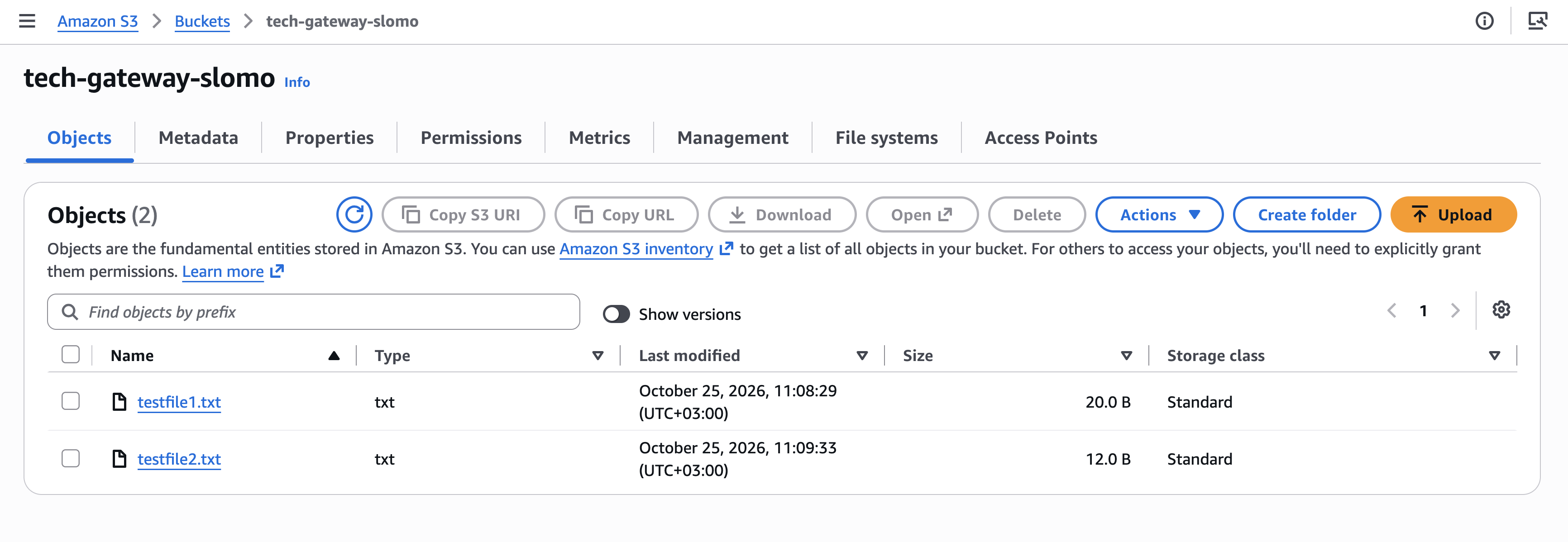
Then I checked my S3 bucket.
And there it was! 🎉

A file created using an ordinary Linux command had made its way into Amazon S3. No aws s3 cp command needed.
How did the file get there?
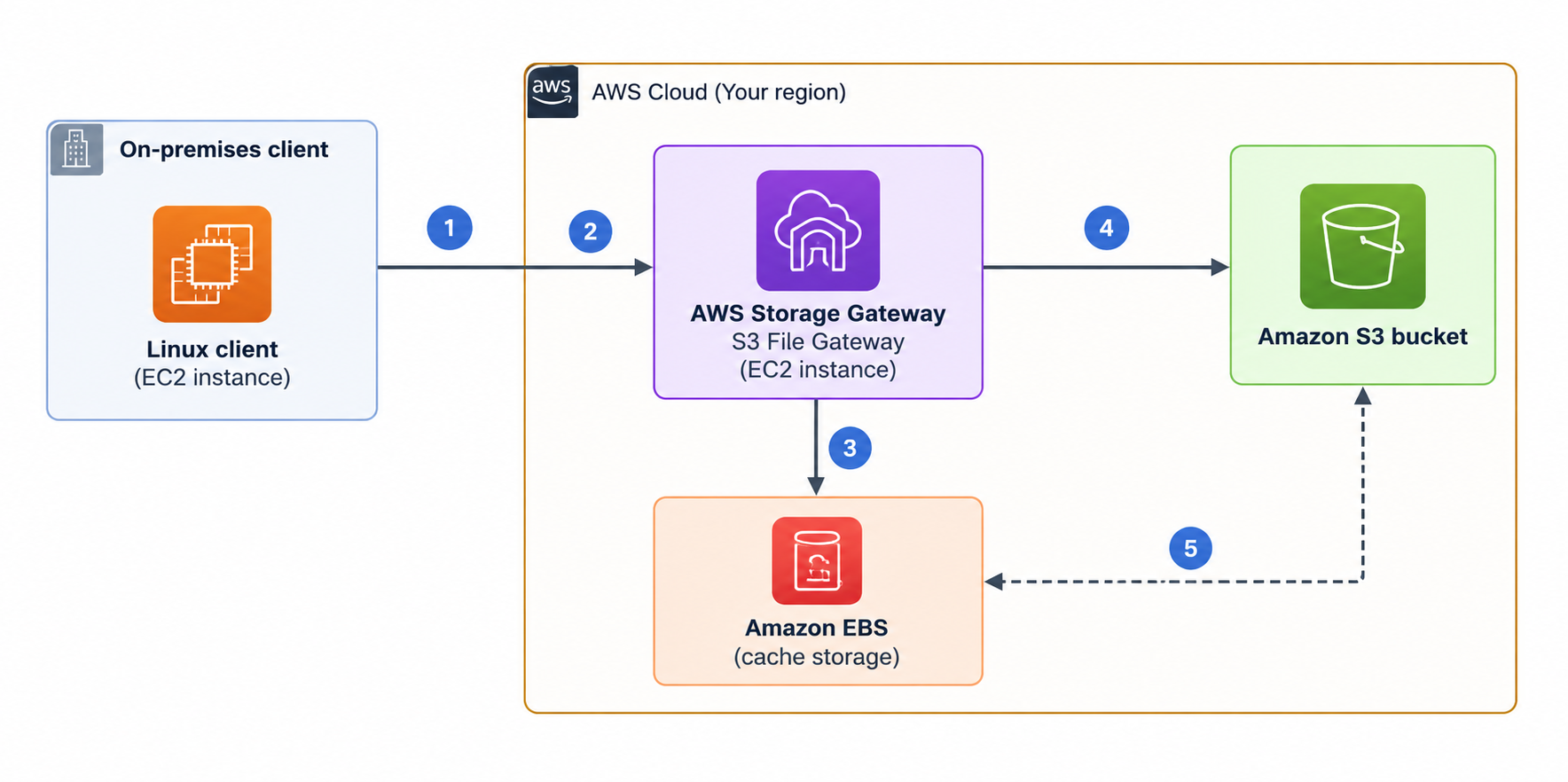
Here’s the simplified process:
- My Linux client writes a file into the mounted directory.
- The NFS request travels over the network to the S3 File Gateway.
- The gateway writes the data to its local cache.
- Storage Gateway asynchronously uploads the file into my S3 bucket as an object.
- Future reads can be served from the cache or fetched from S3 when needed.
And that’s how a file written through NFS ends up in object storage.
One important detail: S3 doesn’t become a fully POSIX-compliant file system just because we’re accessing it through NFS. Storage Gateway translates compatible file operations into object operations, but the underlying storage models are still different.
6. Optimizing Storage Costs with S3 Lifecycle Policies
Getting my files into S3 was great.
But what happens when those files start piling up over months or years?
Surely we don’t want to keep paying for frequently accessed storage when nobody’s touching those files anymore.
Because why should a file that’s been collecting digital dust for months live in premium storage? 😭
For the project’s extension, I configured S3 Lifecycle policies to automatically transition objects into lower-cost storage classes.
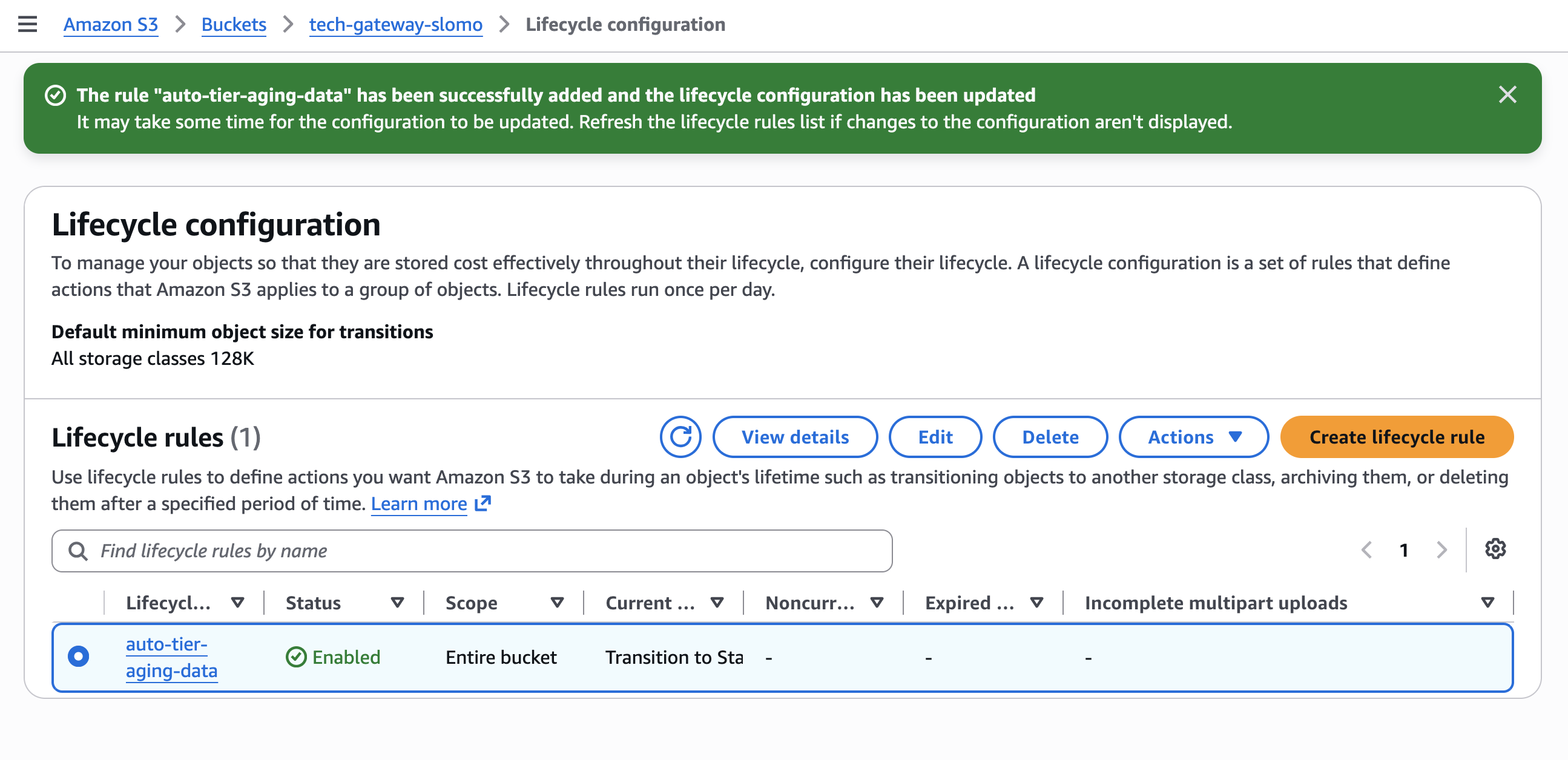
a) After 30 days: S3 Standard-IA
I configured the first transition to S3 Standard-Infrequent Access (Standard-IA) after 30 days.
This class is designed for data that isn’t accessed frequently but still requires immediate retrieval. Storage costs are generally lower than S3 Standard, although retrieval charges apply. It also has a minimum storage duration of 30 days.
Think of this as moving files from your desk into a nearby cabinet. They’re still easy to reach, just not right in front of you.
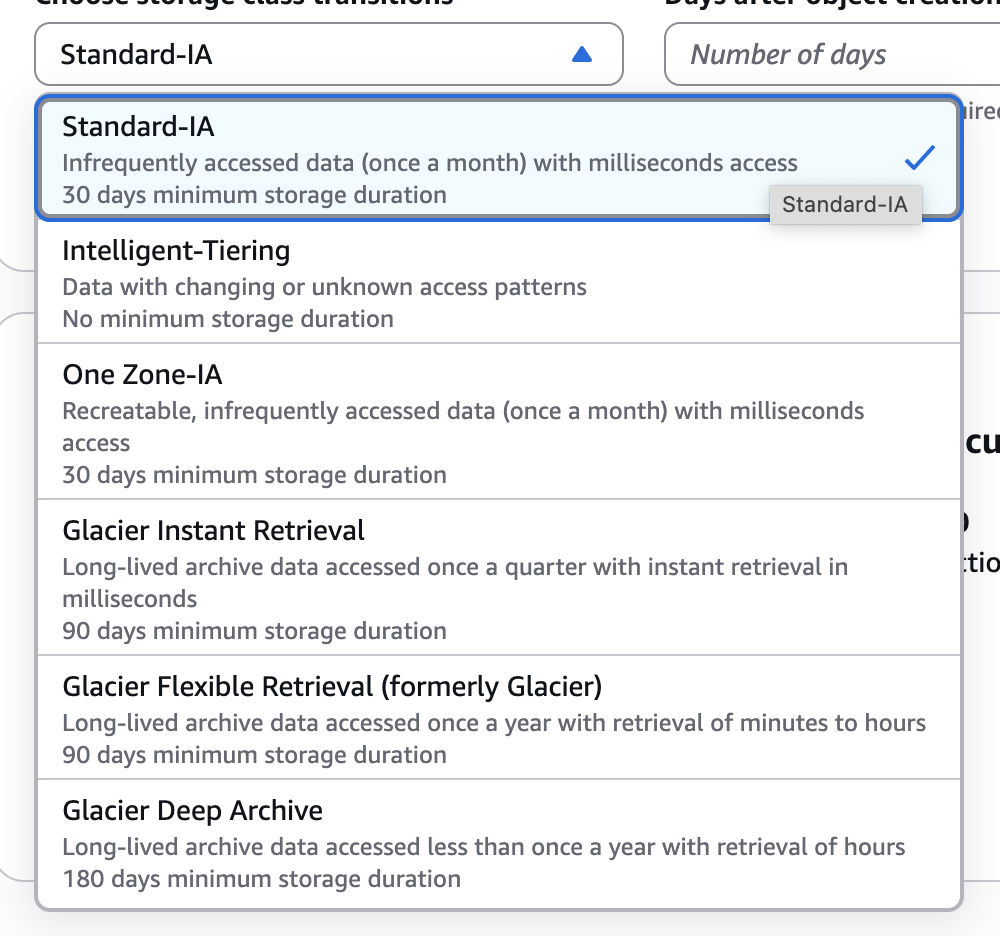
b) After 90 days: S3 Glacier Flexible Retrieval
The second transition moves eligible objects into S3 Glacier Flexible Retrieval after 90 days.
This is intended for archival data that rarely needs to be accessed. Standard retrieval typically takes 3–5 hours, and objects must be restored before they can be retrieved normally. It also has a minimum storage duration of 90 days.
This is more like putting your files into a warehouse. You still own them, but someone has to go fetch them first.
The Lifecycle catch
These transitions are based on the object’s age, not whether someone has recently opened the file.
So a lifecycle rule set to transition an object after 90 days doesn’t necessarily know whether that object is still important to your application’s day-to-day operations.
There’s also an important compatibility consideration with Storage Gateway.
Files transitioned to Glacier Flexible Retrieval cannot simply be accessed and modified through the NFS share as though they were still in S3 Standard.
Archived objects need to be restored before they can be used normally again, and attempting operations on them through the gateway can produce I/O errors.
For production workloads, I’d separate actively used files from data intended for long-term archival, potentially using different buckets or prefixes with appropriate lifecycle rules.
Additionally, S3’s default lifecycle configuration generally doesn’t transition objects smaller than 128 KB. So the size of your files matters when evaluating whether these policies will actually apply.
💡 Automating storage costs is useful, but only if you understand how your applications will access that data later.
Cheaper storage isn’t much of a win if your application suddenly can’t read the files it needs.
7. Reflections and Takeaways
This project took me approximately three hours, and it helped me understand what hybrid cloud storage looks like beyond architecture diagrams.
What Did I Actually Learn?
1. File storage and object storage aren’t the same thing.
NFS lets clients interact with files and directories over a network, while S3 stores data as objects.
S3 File Gateway connects those two different storage models.
2. Caching is more than a performance optimization.
The gateway uses local cache storage both to speed up access to frequently used data and to hold writes while they’re waiting to be uploaded to S3.
This also means monitoring pending uploads is important before shutting down a gateway.
3. IAM permissions and network permissions solve different problems.
Security groups control network connectivity between my client and the gateway.
IAM controls what the gateway is authorized to do with my S3 bucket.
Both are necessary, but they protect different parts of the architecture.
4. Storage costs should reflect access patterns.
S3 Lifecycle policies make it possible to transition objects to more economical storage classes automatically.
However, archival policies need to account for retrieval times, costs, and application compatibility.
What challenged me?
The biggest challenge was understanding why Storage Gateway needs a fairly substantial EC2 instance just to provide access to an S3 bucket.
At first, I thought, I’m just moving some files. Why does this need so many resources? But the gateway isn’t simply forwarding files.
It’s running a storage appliance that processes file operations, manages metadata, handles caching, and coordinates communication with Amazon S3.
That helped me understand why it’s different from running a small script that uploads files using the AWS CLI.
I also struggled a little with visualizing what the NFS share would look like from the client’s perspective.
The idea made sense in theory, but actually mounting the share and seeing it behave like a local directory made the entire architecture feel much more concrete.

What would I explore next?
I’d love to deploy Storage Gateway in an actual on-premises environment and connect it securely to AWS using AWS Site-to-Site VPN.
I’d also like to experiment with CloudWatch monitoring and see how the gateway behaves when network connectivity is interrupted.
Final Thoughts
My biggest takeaway is that moving to the cloud doesn’t always mean changing how applications interact with storage.
AWS Storage Gateway allows existing systems to continue using familiar file-sharing protocols while taking advantage of Amazon S3.
And sometimes, understanding a cloud service isn’t about memorizing what it does.
It’s about building something, seeing it work, and finally having that ohhh, so that’s how it works moment.
That’s what this project gave me; I hope it does that for you too.
Happy coding! 🚀
Have a project or engineering opportunity in mind? Get in touch with Sonia.