
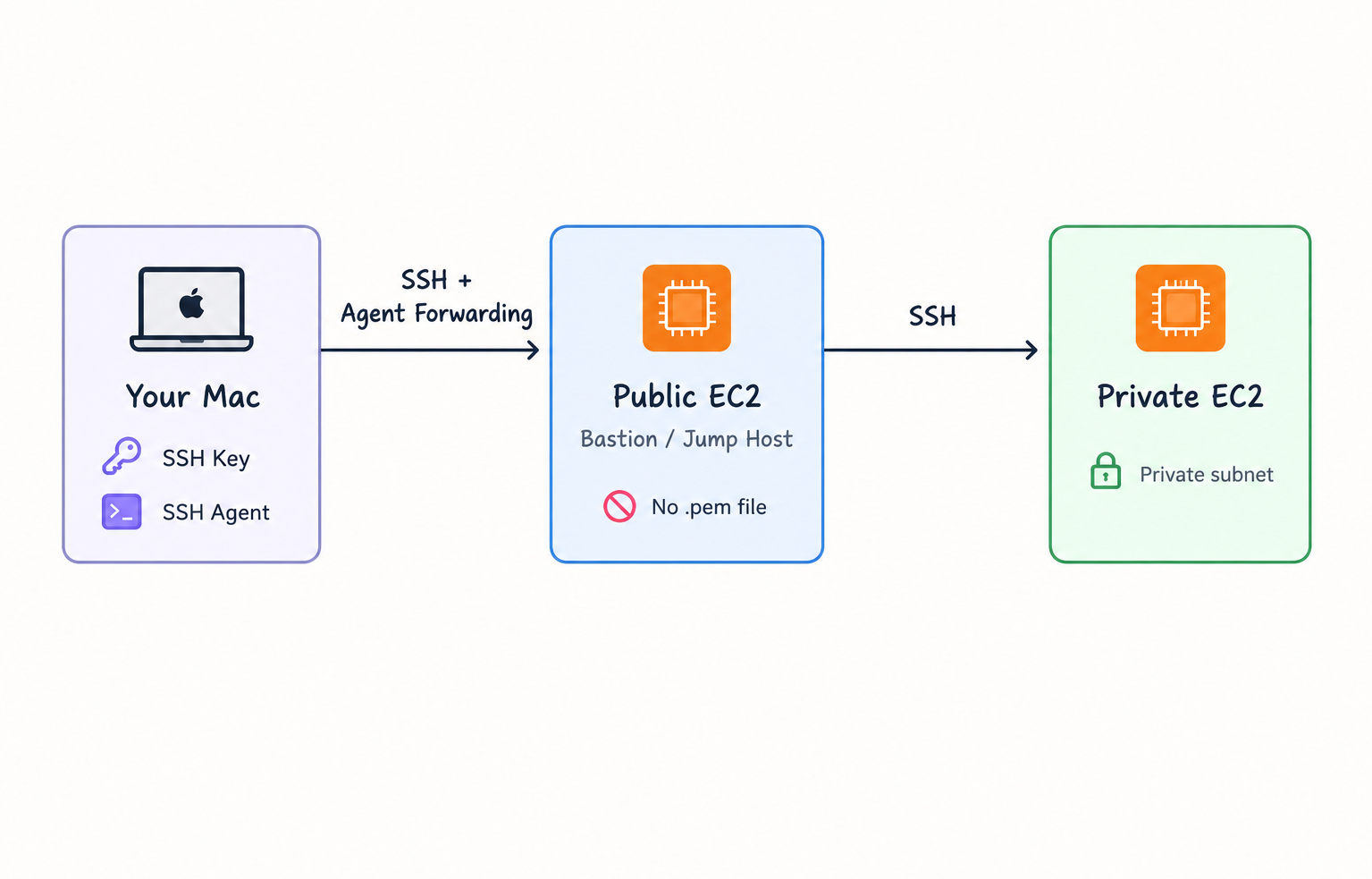
So, you have a public EC2 instance and a private EC2 instance.
You can SSH into the public one just fine. But now you need to get from the public instance to the private one.
You can do this from macOS or Linux using SSH Agent Forwarding. The underlying workflow is the same because both rely on OpenSSH.
For this guide, though, I’ll be using macOS for the local machine, so the commands and setup you’ll see below are written with a Mac in mind. Linux users should be able to follow along with only minor differences in how the SSH agent is started or managed.
The obvious solution might be:
I’ll just copy my
.pemfile onto the public EC2 instance.

That private key is basically the credential that proves you’re allowed to access your EC2 instances. Copying it onto another machine means you’ve now created another place where that sensitive key can be exposed, accidentally logged, copied, or otherwise get into places it shouldn’t.
There’s a cleaner way to do this: SSH Agent Forwarding.
The idea is simple: your Mac keeps the private key. Your public EC2 instance never gets it.
Instead, your Mac’s SSH agent handles the authentication on your behalf while you’re connected through the public instance.
Think of it as your Mac saying:
Don’t worry, I have the key. I’ll prove who I am for you.
Much nicer.
1. Lock Down Your Private Key
Before we do anything clever, let’s make sure our private key has the right permissions.
macOS’s SSH client doesn’t like private keys that are readable by other users on your machine. So we’ll restrict the file to the owner:
chmod 400 /path/to/your-key.pemThis means the key is readable by you, but not writable or readable by other users.
Tiny Mac tip 🧙🏾♀️
If you don’t want to type out the entire path to your .pem file, you can drag the file directly from Finder into your Terminal window.
macOS will magically paste the full path for you. No ~/Downloads/whatever-that-file-was-called-again.pem guessing required.
2. Start Your SSH Agent
Next, we’ll use the SSH agent that runs on your Mac.
The SSH agent is a background process that can hold your private key and use it when SSH needs to authenticate you.
Start it with:
eval "$(ssh-agent -s)"You should get something similar to:
Agent pid 12345Now add your private key to the agent:
ssh-add /path/to/your-key.pemYou can check that the key was successfully loaded with:
ssh-add -lThis should show the fingerprint and type of the key currently loaded in your SSH agent. At this point, your Mac has the key.
And importantly, the key hasn’t gone anywhere else.
3. SSH Into the Public EC2 Instance
Now we can connect to the public EC2 instance. This time, we’ll use the -A flag:
ssh -A ec2-user@your-public-ec2-ipFor Amazon Linux, the username is typically ec2-user, although the correct username depends on the AMI you’re using.
The important part here is:
-AThat enables SSH agent forwarding for this connection.
Instead of sending your private key to the public EC2 instance, SSH creates a way for that instance to ask your local SSH agent to perform authentication on its behalf.
Your private key stays on your Mac. That’s the whole magic trick. ✨
4. From Public EC2 → Private EC2
Now you’re sitting inside your public EC2 instance. The next step is to SSH into the private EC2 instance:
ssh ec2-user@your-private-ec2-ipWe didn’t copy the .pem file onto the public instance. No private key sitting around on the public server.
Instead, when the public instance needs to authenticate with the private instance, the SSH connection can use the agent that was forwarded from your Mac.
Your authentication path now looks something like this:
The important distinction is that the private key itself stays on your Mac.
The public instance gets access to the authentication agent, not a copy of your private key.
Why This Is Better
There are a few moving pieces here, but the security principle is pretty straightforward:
Don’t move secrets when you can delegate authentication instead.
With the naive approach, you’d have something like:
❌ ❌ ❌
Mac
 │
 │ copy private key
 ▼
Public EC2
 │
 │ use private key
 ▼
Private EC2
Now the private key exists on two machines.
With agent forwarding:
✅ ✅ ✅
Mac
 │
 │ authenticate through SSH agent
 ▼
Public EC2
 │
 │ forwarded authentication
 ▼
Private EC2
The private key remains on your local machine.
That’s a much nicer setup for a temporary SSH hop through a bastion/jump host.
One important caveat ⚠️
SSH agent forwarding isn’t something to switch on blindly for every server you connect to.
While you’re connected to the public instance with agent forwarding enabled, that machine can potentially make authentication requests through your forwarded agent. This is why you should only forward your agent through hosts you trust.
In other words, agent forwarding means “this server can ask my SSH agent to authenticate for me.”
It does not mean, “this server gets my private key.”
That distinction is small in wording, but pretty important in practice.
And just like that, you’ve gone from:
How do I get from my public EC2 instance to my private one?
to:
I can hop through the public instance without throwing my private key onto a server.
Much better.
Have a project or engineering opportunity in mind? Get in touch with Sonia.